HTML is the standard markup language for creating Web pages.
What is HTML?
HTML stands for Hyper Text Markup Language
HTML is the standard markup language for creating Web pages
HTML describes the structure of a Web page
HTML consists of a series of elements
HTML elements label pieces of content such as "this is a heading", "this is a paragraph", "this is a link", etc.
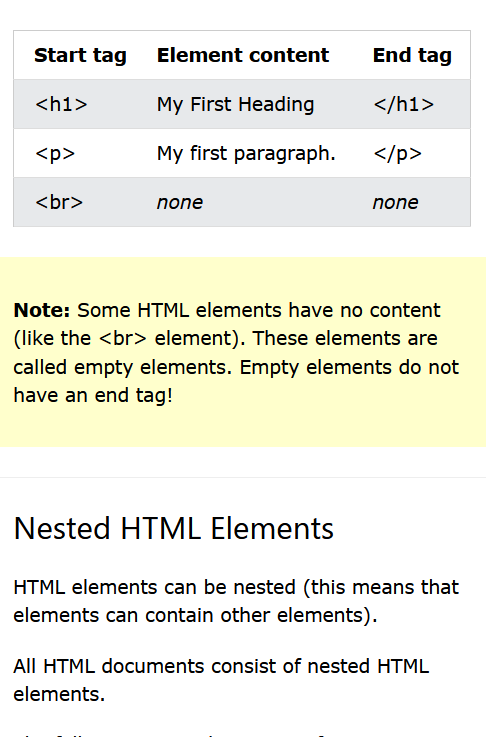
What is an HTML Element? An HTML element is defined by a start tag, some content, and an end tag:"tagname> Content goes here.../tagname> Examples of some HTML elements:
My First Heading
Examples of Nested HTML elements
Nested HTML Elements
HTML elements can be nested (this means that elements can contain other elements).
All HTML documents consist of nested HTML elements.
The following example contains four HTML elements (<html>, <body>, <h1>, and <p>):
Example
<!DOCTYPE html>
<html>
<body>

  <h1>My First Heading</h1>
  <p>My first paragraph.</p>

</body>
</html>
Example Explained
The <html> element is the root element and it defines the whole HTML document.
It has a start tag <html> and an end tag </html>.
Then, inside the <html> element there is a <body> element:
<body>

  <h1>My First Heading</h1>
  <p>My first paragraph.</p>

</body>
Examples of Nested HTML elements
The <body> Element
The <body> element defines the document's body.
It has a start tag <body> and an end tag </body>.
Then, inside the <body> element there are two other elements: <h1> and <p>:
<h1>My First Heading</h1>
<p>My first paragraph.</p>
<h1> Element
The <h1> element defines a heading.
It has a start tag <h1> and an end tag </h1>:
<h1>My First Heading</h1>
<p> Element
The <p> element defines a paragraph.
It has a start tag <p> and an end tag </p>:
<p>My first paragraph.</p>
Never Skip the End Tag
Some HTML elements will display correctly, even if you forget the end tag:
Example
<html>
<body>

<p>This is a paragraph
<p>This is a paragraph

</body>
</html>
HTML Attributes
HTML Attributes
HTML attributes provide additional information about HTML elements.
All HTML elements can have attributes
Attributes provide additional information about elements
Attributes are always specified in the start tag
Attributes usually come in name/value pairs like: name="value"
The href Attribute
The <a> tag defines a hyperlink.
The href attribute specifies the URL of the page the link goes to:
You will learn more about links in our HTML Links chapter.
Image Attributes in HTML
The src Attribute
The <img> tag is used to embed an image in an HTML page.
The src attribute specifies the path to the image to be displayed:
Example
<img src="img_girl.jpg">
Ways to Specify the URL
Absolute URL - Links to an external image that is hosted on another website.
Example: src="https://www.w3schools.com/images/img_girl.jpg".
Note: External images may be copyrighted or removed without notice.
Relative URL - Links to an image hosted within the same website.
Example: src="img_girl.jpg" (relative to current page).
Example: src="/images/img_girl.jpg" (relative to the domain).
Tip: It is almost always best to use relative URLs to avoid broken links when changing domains.
The width and height Attributes
The <img> tag should also contain the width and height attributes,
which specify the size of the image (in pixels):
Example
<img src="img_girl.jpg" width="500" height="600">
The alt Attribute
The required alt attribute specifies alternate text for an image
if the image cannot be displayed (e.g., slow connection, wrong path, or screen readers).
Example
<img src="img_girl.jpg" alt="Girl with a jacket">
Broken Image Example
<img src="img_typo.jpg" alt="Girl with a jacket">
You will learn more about images in our HTML Images chapter.
Common HTML Attributes
The style Attribute
The style attribute is used to add styles to an element,
such as color, font, size, and more.
Example
<p style="color:red;">This is a red paragraph.</p>
You will learn more about styles in our HTML Styles chapter.
The lang Attribute
You should always include the lang attribute inside the <html> tag,
to declare the language of the web page. This helps search engines and browsers.
You can see all language codes in the HTML Language Code Reference.
The title Attribute
The title attribute defines extra information about an element.
The value is shown as a tooltip when you hover over the element.
Example
<p title="I'm a tooltip">This is a paragraph.</p>
We Suggest: Always Use Lowercase Attributes
The HTML standard does not require lowercase attribute names.
Attributes can be written in uppercase or lowercase, e.g., title or TITLE.
However, LEGACY DevLab recommends lowercase attributes in HTML,
and lowercase is required in stricter document types like XHTML.
Common HTML Attributes
We Suggest: Always Quote Attribute Values
The HTML standard does not require quotes around attribute values.
However, W3C recommends quotes in HTML, and they are required in stricter document types like XHTML.
Good Example
<a href="https://www.w3schools.com/html/">Visit our HTML tutorial</a>
Bad Example
<a href=https://www.w3schools.com/html/>Visit our HTML tutorial</a>
Sometimes you must use quotes. For example, this will not work correctly because it contains a space:
Example (Incorrect)
<p title=About W3Schools>This paragraph may not work properly.</p>
Example (Correct)
<p title="About W3Schools">This paragraph works fine.</p>
Single or Double Quotes?
Double quotes around attribute values are most common in HTML,
but single quotes can also be used.
Use the alternative when the attribute value itself contains quotes.
Example with Double Quotes
<p title="John 'ShotGun' Nelson">This is with double quotes outside.</p>
Example with Single Quotes
<p title='John "ShotGun" Nelson'>This is with single quotes outside.</p>
Chapter Summary
All HTML elements can have attributes
The href attribute of <a> specifies the URL of the page the link goes to
The src attribute of <img> specifies the path to the image to be displayed
The width and height attributes of <img> provide size information for images
The alt attribute of <img> provides an alternate text for an image
The style attribute is used to add styles to an element, such as color, font, size, and more
The lang attribute of the <html> tag declares the language of the Web page
The title attribute defines some extra information about an element
HTML Basics
HTML Headings
HTML headings are titles or subtitles that you want to display on a webpage.
Headings are defined with the <h1> to <h6> tags.
<h1> defines the most important heading,
while <h6> defines the least important.
Browsers automatically add some white space (a margin) before and after a heading.
HTML Basics
HTML Paragraphs
A paragraph in HTML is defined with the <p> tag.
Browsers automatically add some space before and after each paragraph.
Example Code
<p>This is a paragraph.</p>
<p>This is another paragraph.</p>
Output
This is a paragraph.
This is another paragraph.
You can write as many paragraphs as you want.
They make your content easier to read and understand.
HTML Basics
HTML Paragraphs
The HTML <p> element defines a paragraph.
A paragraph always starts on a new line, and browsers automatically add some white space (a margin) before and after a paragraph.
Example Code
<p>This is a paragraph.</p>
<p>This is another paragraph.</p>
Output
This is a paragraph.
This is another paragraph.
HTML Display
You cannot be sure how HTML will be displayed.
Large or small screens, and resized windows create different results.
Adding extra spaces or new lines in your code will not affect how the text is displayed.
Example Code
<p>
This paragraph
contains a lot of lines
in the source code,
but the browser
ignores it.
</p>

<p>
This paragraph
contains         a lot of spaces
in the source         code,
but the        browser
ignores it.
</p>
Output
This paragraph
contains a lot of lines
in the source code,
but the browser
ignores it.
This paragraph
contains a lot of spaces
in the source code,
but the browser
ignores it.
HTML Basics
HTML Horizontal Rules
The <hr> tag defines a thematic break in an HTML page,
and is most often displayed as a horizontal rule.
It is used to separate content or indicate a shift in topic.
The <hr> tag is an empty tag, meaning it has no closing tag.
Example Code
<h1>This is heading 1</h1>
<p>This is some text.</p>
<hr>
<h2>This is heading 2</h2>
<p>This is some other text.</p>
<hr>
Output
This is heading 1
This is some text.
This is heading 2
This is some other text.
HTML Line Breaks
The <br> tag inserts a line break inside text without starting a new paragraph.
The <br> tag is also an empty tag.
Example Code
<p>This is<br>a paragraph<br>with line breaks.</p>
Output
This is a paragraph with line breaks.
The Poem Problem
HTML collapses extra spaces and line breaks.
So a poem written with new lines in the source code
will still appear on a single line in the browser.
Example Code
<p>
  My Bonnie lies over the ocean.

  My Bonnie lies over the sea.

  My Bonnie lies over the ocean.

  Oh, bring back my Bonnie to me.
</p>
Output
My Bonnie lies over the ocean.
My Bonnie lies over the sea.
My Bonnie lies over the ocean.
Oh, bring back my Bonnie to me.
HTML Basics
Solution - The HTML <pre> Element
The HTML <pre> element defines preformatted text.
Text inside a <pre> block is displayed in a fixed-width font (like Courier)
and preserves both spaces and line breaks exactly as written in the source code.
Example Code
<pre>
  My Bonnie lies over the ocean.

  My Bonnie lies over the sea.

  My Bonnie lies over the ocean.

  Oh, bring back my Bonnie to me.
</pre>
Output
  My Bonnie lies over the ocean.

  My Bonnie lies over the sea.

  My Bonnie lies over the ocean.

  Oh, bring back my Bonnie to me.
✅ Use <pre> when you need to display text exactly as typed,
such as poems, code snippets, or any content where spacing and line breaks matter.
HTML Basics
HTML Styles
The style attribute is used to add styles to an element,
such as color, font, size, background, and more.
Example Code
<p style="color:red;">I am Red</p>
<p style="color:blue;">I am Blue</p>
<p style="font-size:30px;">I am Big</p>
Output
I am Red
I am Blue
I am Big
The HTML Style Attribute
Setting the style of an HTML element can be done with the style attribute.
Syntax:
<tagname style="property:value;">
The property is a CSS property, and the value is a CSS value.
You’ll learn more about CSS later in this tutorial.
Background Color
The CSS background-color property sets the background color for an element.
Example: Page Background
<body style="background-color:powderblue;">

<h1>This is a heading</h1>
<p>This is a paragraph.</p>

</body>
Example: Element Backgrounds
<h1 style="background-color:powderblue;">This is a heading</h1>
<p style="background-color:tomato;">This is a paragraph.</p>
This is a heading
This is a paragraph.
HTML Basics
Text Color
The CSS color property defines the text color for an HTML element.
Example
<h1 style="color:blue;">This is a heading</h1>
<p style="color:red;">This is a paragraph.</p>
This is a heading
This is a paragraph.
Fonts
The CSS font-family property specifies the font to be used for an element.
Example
<h1 style="font-family:verdana;">This is a heading</h1>
<p style="font-family:courier;">This is a paragraph.</p>
This is a heading
This is a paragraph.
Text Size
The CSS font-size property defines the text size of an element.
Example
<h1 style="font-size:300%;">This is a heading</h1>
<p style="font-size:160%;">This is a paragraph.</p>
This is a heading
This is a paragraph.
Text Alignment
The CSS text-align property defines horizontal text alignment.
HTML contains several elements for defining text with a special meaning.
Example
<b>This text is bold</b>
<i>This text is italic</i>
<sub>This is subscript</sub> and <sup>superscript</sup>
This text is bold This text is italic This is subscript and superscript
HTML Formatting Elements
Formatting elements were designed to display special types of text:
<b> - Bold text
<strong> - Important text
<i> - Italic text
<em> - Emphasized text
<mark> - Marked text
<small> - Smaller text
<del> - Deleted text
<ins> - Inserted text
<sub> - Subscript text
<sup> - Superscript text
HTML <b> and <strong> Elements
The <b> element defines bold text, without extra importance.
Example
<b>This text is bold</b>
This text is bold
The <strong> element defines text with strong importance. The content inside is typically displayed in bold.
Example
<strong>This text is important!</strong>
This text is important!
HTML , , and Elements
HTML <i> Element
The <i> element defines a part of text in an alternate voice or mood.
The content inside is typically displayed in italic.
Tip: The <i> tag is often used to indicate a technical term, a phrase from another language, a thought, or a ship name.
Example
<i>This text is italic</i>
This text is italic
HTML <em> Element
The <em> element defines emphasized text.
The content inside is typically displayed in italic.
Tip: A screen reader will pronounce words inside <em> with emphasis, using verbal stress.
Example
<em>This text is emphasized</em>
This text is emphasized
HTML <small> Element
The <small> element defines smaller text, often for side comments or fine print.
Example
<small>This is some smaller text.</small>
This is some smaller text.
HTML , , , and Elements
HTML <mark> Element
The <mark> element defines text that should be highlighted or marked as relevant.
Example
<p>Do not forget to buy <mark>milk</mark> today.</p>
Do not forget to buy milk today.
HTML <del> Element
The <del> element defines text that has been deleted from a document.
Browsers usually render it with a line through the text.
Example
<p>My favorite color is <del>blue</del> red.</p>
My favorite color is blue red.
HTML <ins> Element
The <ins> element defines text that has been inserted into a document.
Browsers usually render it with an underline.
Example
<p>My favorite color is <del>blue</del> <ins>red</ins>.</p>
My favorite color is blue red.
HTML <sub> Element
The <sub> element defines subscripted text.
It appears half a character below the normal line and is often used in chemical formulas.
Example
<p>Water formula is H<sub>2</sub>O.</p>
Water formula is H2O.
HTML <sup> Element
What is Superscript?
The <sup> element defines superscript text.
It appears half a character above the normal line and is usually displayed in a smaller font.
Superscript text is often used for footnotes, mathematical exponents,
or ordinal indicators.
Example
<p>This is <sup>superscripted</sup> text.</p>
<p>The formula is x<sup>2</sup> + y<sup>2</sup>.</p>
<p>Reference: WWW<sup>[1]</sup></p>
This is superscripted text.
The formula is x2 + y2.
Reference: WWW[1]
HTML Text Formatting Elements
Below is a summary of the most commonly used text formatting tags in HTML:
Tag
Description
<b>
Defines bold text
<strong>
Defines important text
<i>
Defines a part of text in an alternate voice or mood
<em>
Defines emphasized text
<mark>
Defines highlighted text
<small>
Defines smaller text
<del>
Defines deleted text
<ins>
Defines inserted text
<sub>
Defines subscripted text
<sup>
Defines superscripted text
HTML Quotation and Citation Elements
In this chapter, we will go through the <blockquote>, <q>,
<abbr>, <address>, <cite>,
and <bdo> HTML elements.
HTML <blockquote> for Quotations
The <blockquote> element defines a section that is quoted from another source.
Browsers usually indent blockquote elements.
Here is a quote from WWF's website:
For 60 years, WWF has worked to help people and nature thrive. As the world's leading conservation
organization, WWF works in nearly 100 countries. At every level, we collaborate with people
around the world to develop and deliver innovative solutions that protect communities, wildlife,
and the places in which they live.
HTML <q> for Short Quotations
The <q> tag defines a short quotation. Browsers normally insert quotation marks automatically.
WWF's goal is to: Build a future where people live in harmony with nature.
HTML Quotation and Citation Elements (Continued)
HTML <abbr> for Abbreviations
The <abbr> tag defines an abbreviation or acronym. Marking abbreviations can give
useful information to browsers, translation systems, and search engines.
Tip: Use the title attribute to show the description when hovering.
The WHO was founded in 1948.
HTML <address> for Contact Information
The <address> tag defines contact information for the author or owner of a document/article.
It usually renders in italic and browsers add a line break before and after.
Written by John Doe.
Visit us at:
Example.com
Box 564, Disneyland
USA
HTML <cite> for Work Title
The <cite> tag defines the title of a creative work (e.g., a book, painting, song, etc.).
It usually renders in italic.
The Scream by Edvard Munch. Painted in 1893.
HTML <bdo> for Bi-Directional Override
The <bdo> tag overrides the current text direction.
This text will be written from right to left
HTML Quotation and Citation Elements
<abbr> – Defines an abbreviation or acronym
<address> – Defines contact information for the author/owner of a document
<bdo> – Defines the text direction (Bi-Directional Override)
<blockquote> – Defines a section that is quoted from another source
<cite> – Defines the title of a creative work
<q> – Defines a short inline quotation
HTML Basics
HTML Comments
HTML comments are not displayed in the browser, but they can help document your HTML source code.
Syntax
<!-- Write your comments here -->
Notice the exclamation mark ! in the start tag, but not in the end tag.
Add Comments
<!-- This is a comment -->

<p>This is a paragraph.</p>

<!-- Remember to add more information here -->
Hide Content
Comments can hide sections of HTML code temporarily.
<p>This is a paragraph.</p>

<!-- <p>This is another paragraph</p> -->

<p>This is a paragraph too.</p>
Hide Multiple Lines
<p>This is a paragraph.</p>

<!--
<p>Look at this cool image:</p>
<img border="0" src="pic_trulli.jpg" alt="Trulli">
-->

<p>This is a paragraph too.</p>
Hide Inline Content
<p>This <!-- great text --> is a paragraph.</p>
Chapter Summary
HTML comments are written with <!-- and -->
They are not displayed in the browser
Used to add notes, reminders, or documentation
Can hide single lines, multiple lines, or inline content
Useful for debugging HTML code
HTML Basics
HTML Colors
HTML colors can be defined with color names, or using RGB, HEX, HSL, RGBA, and HSLA values.
rgb() defines colors using red, green, blue (0–255 each).
Over 16 million RGB colors are possible.
rgba() adds an alpha channel for transparency (0–1).
Gray shades use equal R, G, and B values.
HTML Basics
HTML HEX Colors
A hexadecimal color is specified with: #RRGGBB, where
RR (red), GG (green), and BB (blue) are hexadecimal integers (00–ff).
Each pair represents the intensity of a color component (0–255 in decimal).
<p><img src="smiley.gif" style="float:right;"> Text here...</p>
Common Image Formats
Format
Extension
JPEG
.jpg, .jpeg
PNG
.png
GIF
.gif
SVG
.svg
ICO
.ico, .cur
APNG
.apng
Chapter Summary
Use <img> to embed images.
src sets the file path or URL.
alt provides alternative text.
Use width / height or CSS for size.
Use float for text wrapping.
Images can improve the design and the appearance of a web page.
HTML Images
Example
<img src="pic_trulli.jpg" alt="Italian Trulli">
<img src="img_girl.jpg" alt="Girl in a jacket">
<img src="img_chania.jpg" alt="Flowers in Chania">
HTML Images Syntax
The HTML <img> tag is used to embed an image in a web page.
Images are linked to web pages and the <img> tag creates a holding space for the referenced image.
The <img> tag is empty, it contains attributes only, and does not have a closing tag.
Required Attributes
src - Specifies the path to the image
alt - Specifies alternate text for the image
Syntax:
<img src="url" alt="alternatetext">
Examples
<img src="img_chania.jpg" alt="Flowers in Chania">
<img src="wrongname.gif" alt="Flowers in Chania"> (when image not found)
Image Size
<img src="img_girl.jpg" alt="Girl in a jacket" style="width:500px;height:600px;">
<img src="img_girl.jpg" alt="Girl in a jacket" width="500" height="600">
The idea is that different actions can be performed depending on where you click in the image.
The image is linked to the map using the usemap attribute: